Back to Help Hub
Dashboard manual

See what the dashboard is trying to help the user do next.

The dashboard is the operating surface for saved copies, sends, status tracking, signed proof, reusable templates, notifications, archive, and plan usage.

8 documented blocks35 mapped buttons41 explained states
Recommended paths

Start from the most important dashboard jobs

Dashboard block

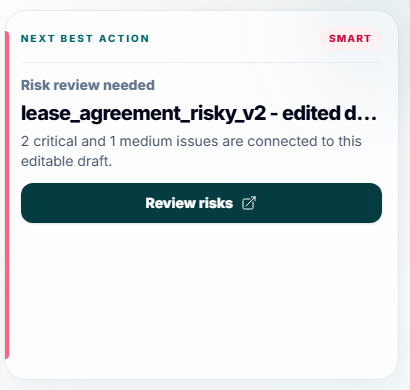
Next Best Action

Chooses the one most useful next move instead of showing every possible document action at once.

User question

What should I do next right now?

States to explain
Risky report waitingSaved online copyPackage waitingSigned package readyEmpty workspace

Captured from the seeded Help Hub test account. Click the screenshot to inspect the real product state full size.

Dashboard block

Operations Room

Shows the whole active queue in one compact area: review, draft, send, signed, and archive counts with one clear action per document.

User question

Which documents need action and what button should I press first?

Buttons in this block
States to explain
ReviewDraftSendSignedArchiveEmpty queue

Captured from the seeded Help Hub test account. Click the screenshot to inspect the real product state full size.

Dashboard block

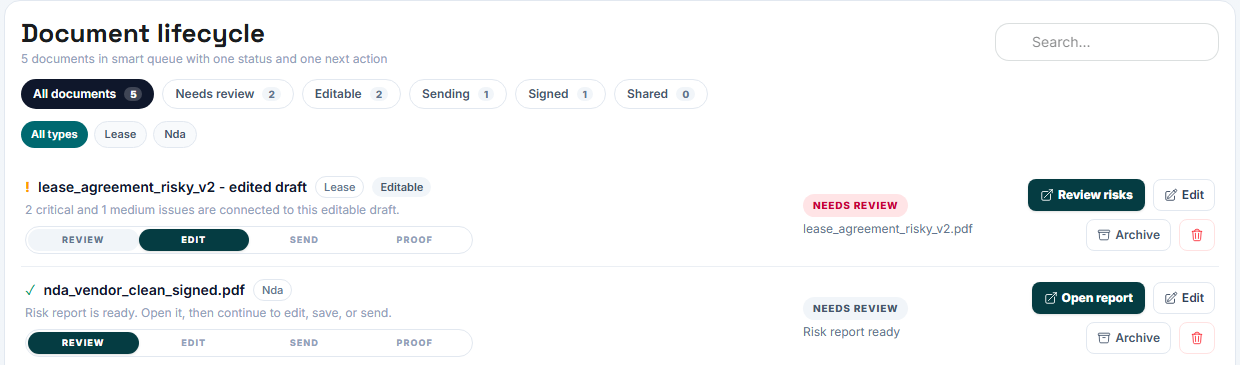
Document Lifecycle

Groups documents by state: review, edit, send, proof, archive.

User question

Where is this document in the process?

Buttons in this block
States to explain
Needs reviewEditable draftPrivate saved copyWaiting for signerCompletedArchived

Captured from the seeded Help Hub test account. Click the screenshot to inspect the real product state full size.

Dashboard block

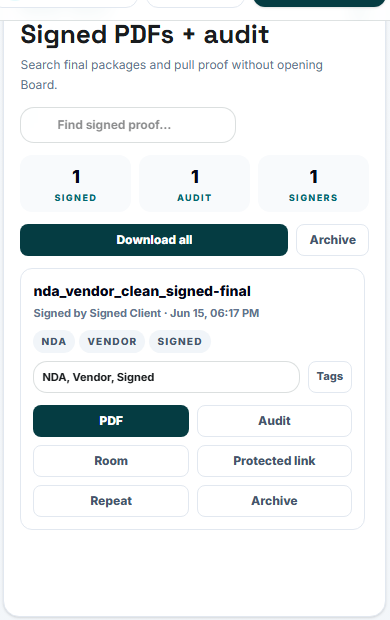
Proof Vault

Stores completed signed PDFs and audit evidence so the user can prove what happened later.

User question

Where is my signed PDF and proof?

States to explain
No signed packagesSigned package readyProof link protectedArchived proof

Captured from the seeded Help Hub test account. Click the screenshot to inspect the real product state full size.

Dashboard block

Templates Library

Lets users repeat proven document workflows without rebuilding the packet from zero.

User question

Can I reuse this workflow?

States to explain
No templatesTemplate limit reachedFavorite templateRepeated workflow

Captured from the seeded Help Hub test account. Click the screenshot to inspect the real product state full size.

Dashboard block

Notifications Center

Shows opened, waiting, signed, failed email, reminder, proof, and upgrade activity.

User question

What happened since I last opened the product?

States to explain
OpenedWaitingSignedFailed emailReminder sentProof ready

Captured from the seeded Help Hub test account. Click the screenshot to inspect the real product state full size.

Dashboard block

Archive

Removes reports, drafts, and packages from active work without deleting them.

User question

How do I clean the dashboard without losing records?

Buttons in this block
States to explain
Archive emptyArchived reportArchived draftArchived packageRestored item

Captured from the seeded Help Hub test account. Click the screenshot to inspect the real product state full size.

Dashboard block

Usage / Settings

Explains plan usage, AI token usage, profile, security, signature, and email signature settings.

User question

What limits did I use and what account settings control the product?

States to explain
Free limitLast AI sessionLifetime token usageSignature profileEmail signature

Captured from the seeded Help Hub test account. Click the screenshot to inspect the real product state full size.

Never sign without understanding every clause.

BrieflyGo reviews your contracts in plain English — instantly.

Try for free →