See what starts each workflow, what happens next, and where the user should land.
Each flow page explains the user goal, the important routes, the buttons that matter, the watch-outs, and the real screenshots that prove the flow exists.
- • Start route and main handoff points
- • Related screen manuals and button behavior
- • Real screenshots plus failure-mode watch-outs
Start from the most useful flows
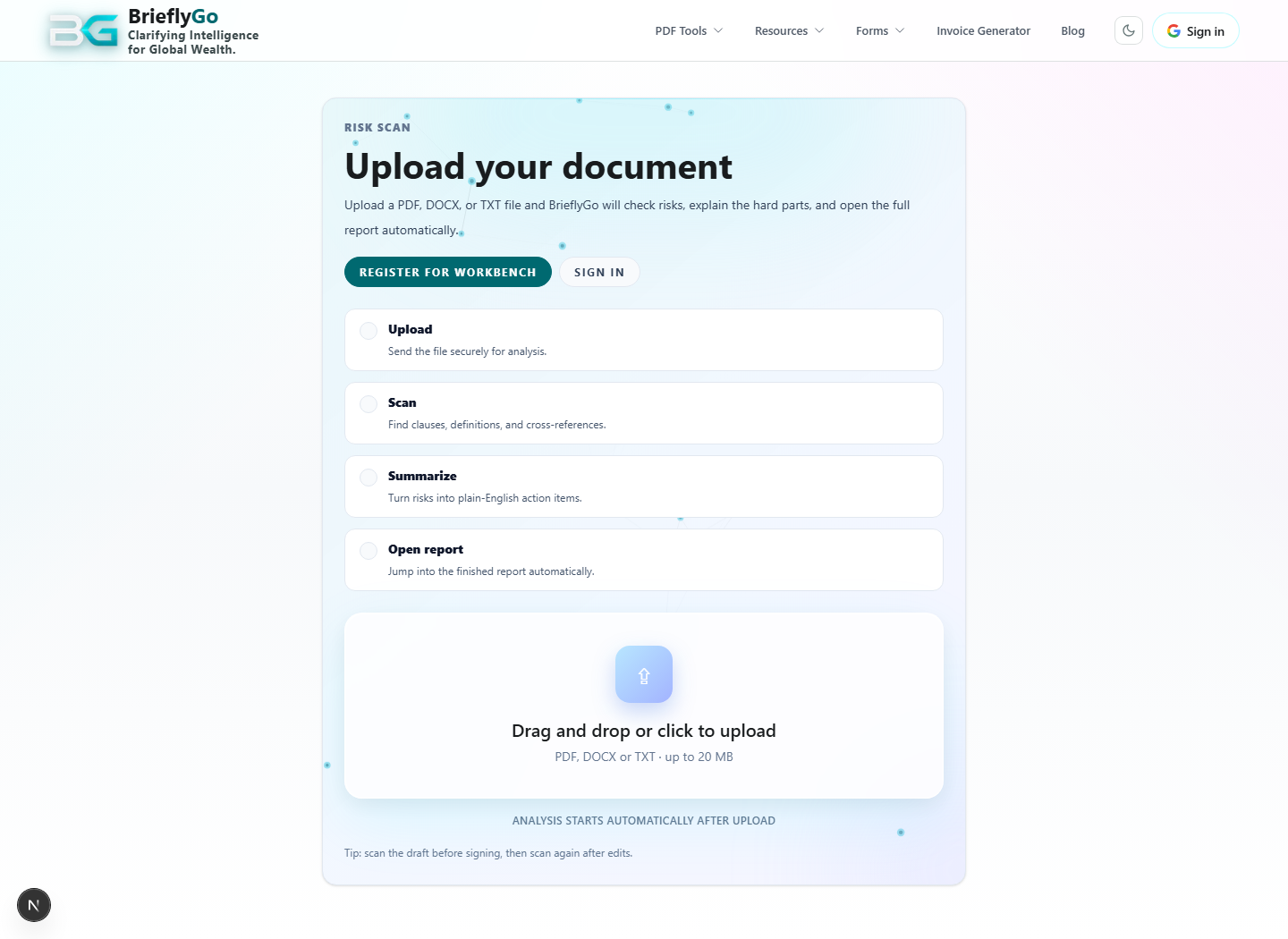
Review a contract
Start with upload, get a plain-English report, then move into editing and re-check.
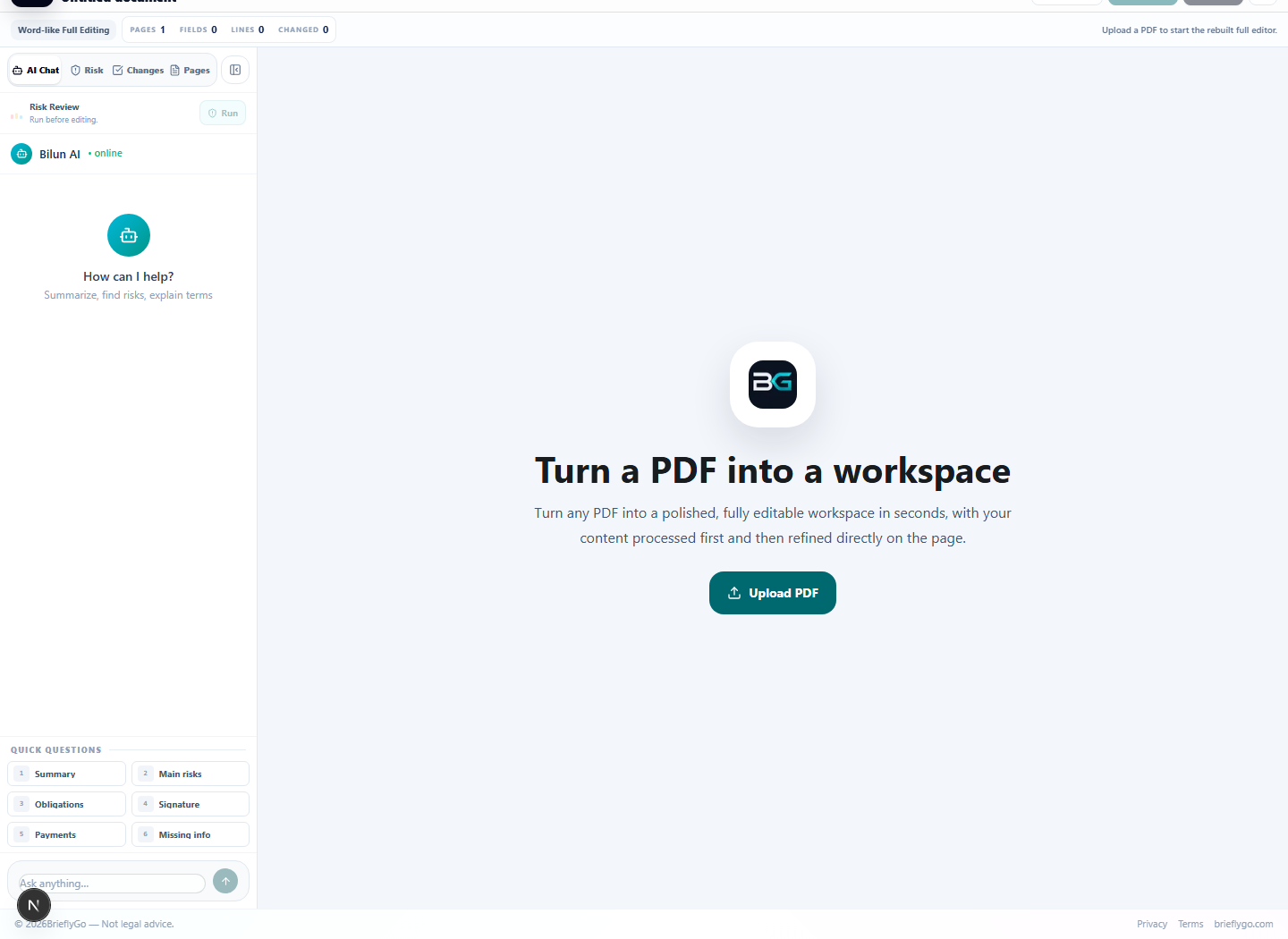
Digitize a paper document
Use OCR, correct the result, then continue in the editor with structured fields and text.
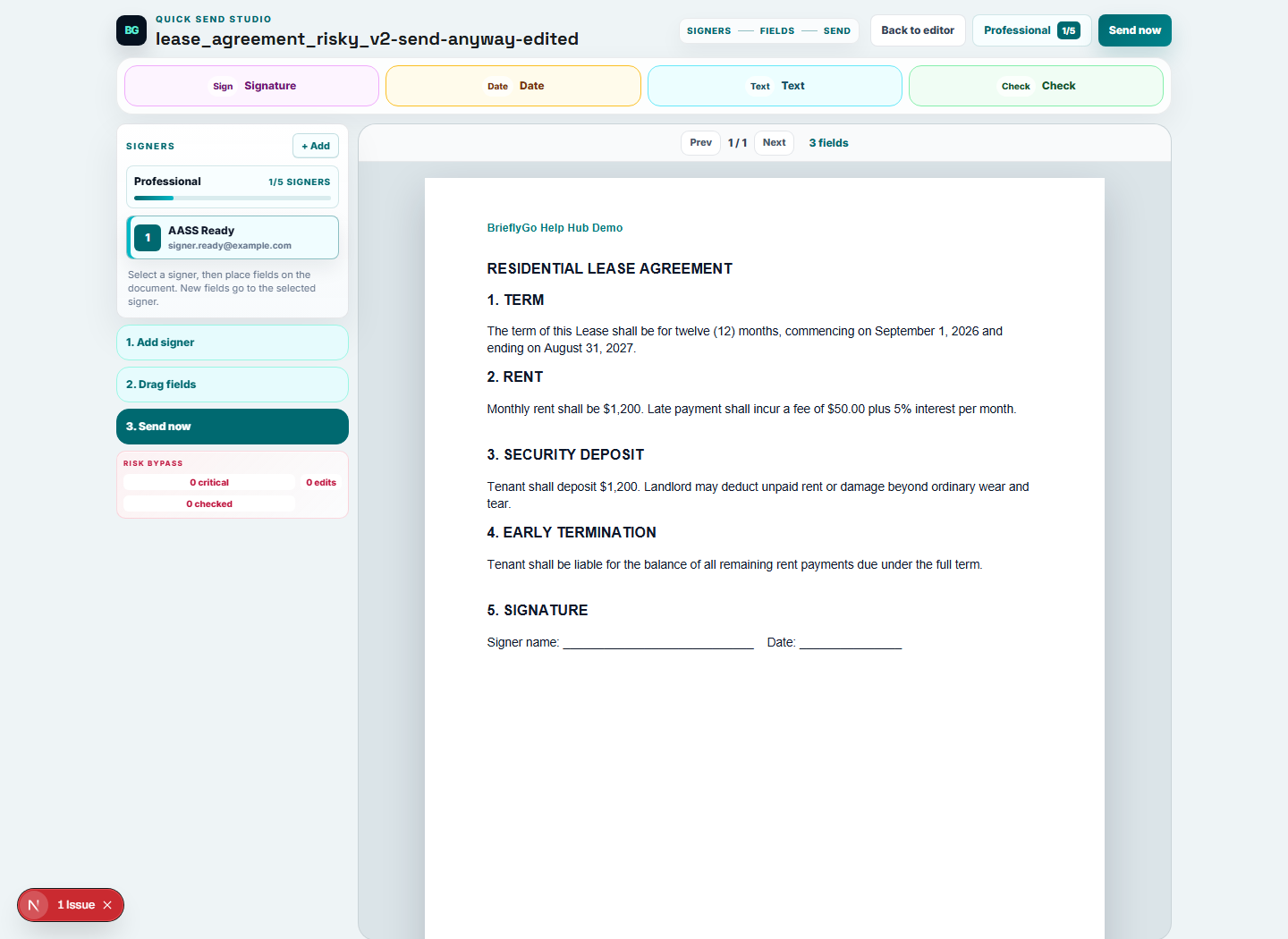
Send a document for signature
Prepare recipients, place fields, protect access, and track the package through the status room.
Risk Report -> Editor -> AI Re-check
Upload a document, let BrieflyGo explain risks in plain English, open the same document in the editor, apply fixes, then ask AI to check the edited version.
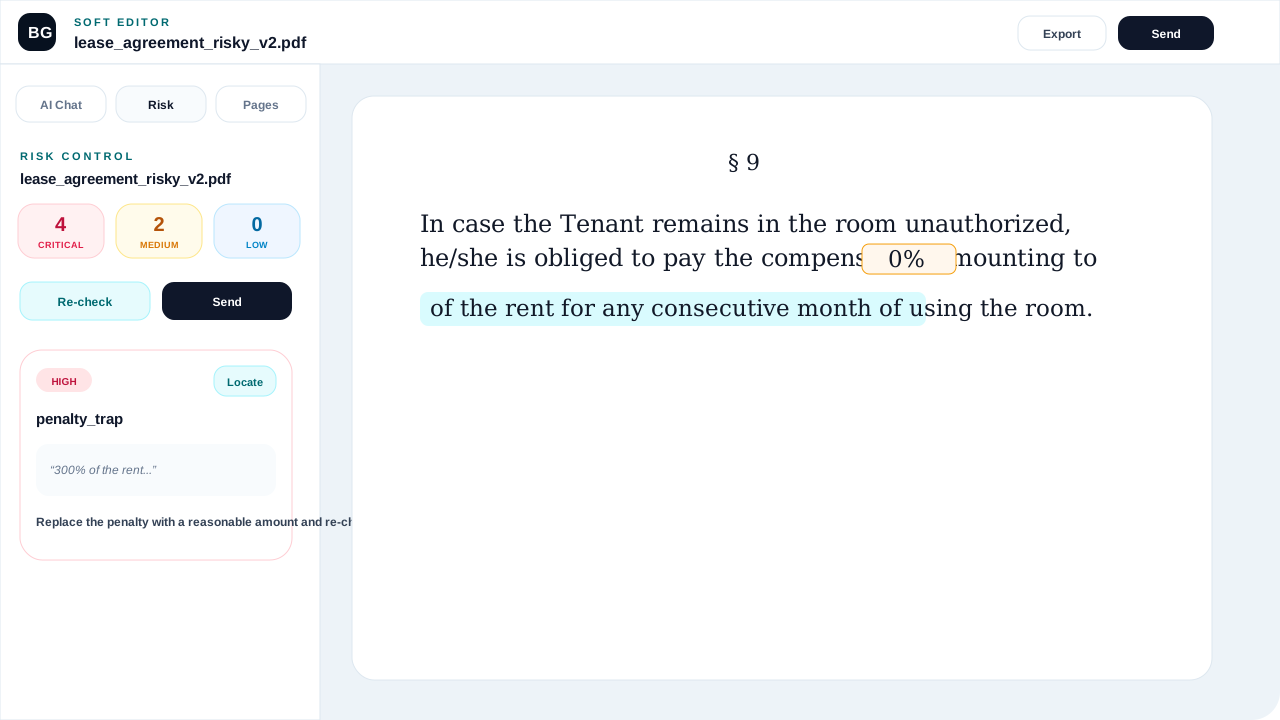
Editor -> Send Anyway -> Quick Send
If risks remain but the user still needs to move forward, BrieflyGo packages the edited PDF, warns clearly, and sends the user into the lightweight Quick Send flow.
Quick Send Studio
Add recipients, drag fields onto the PDF, protect the signer link, and send in a few clicks.
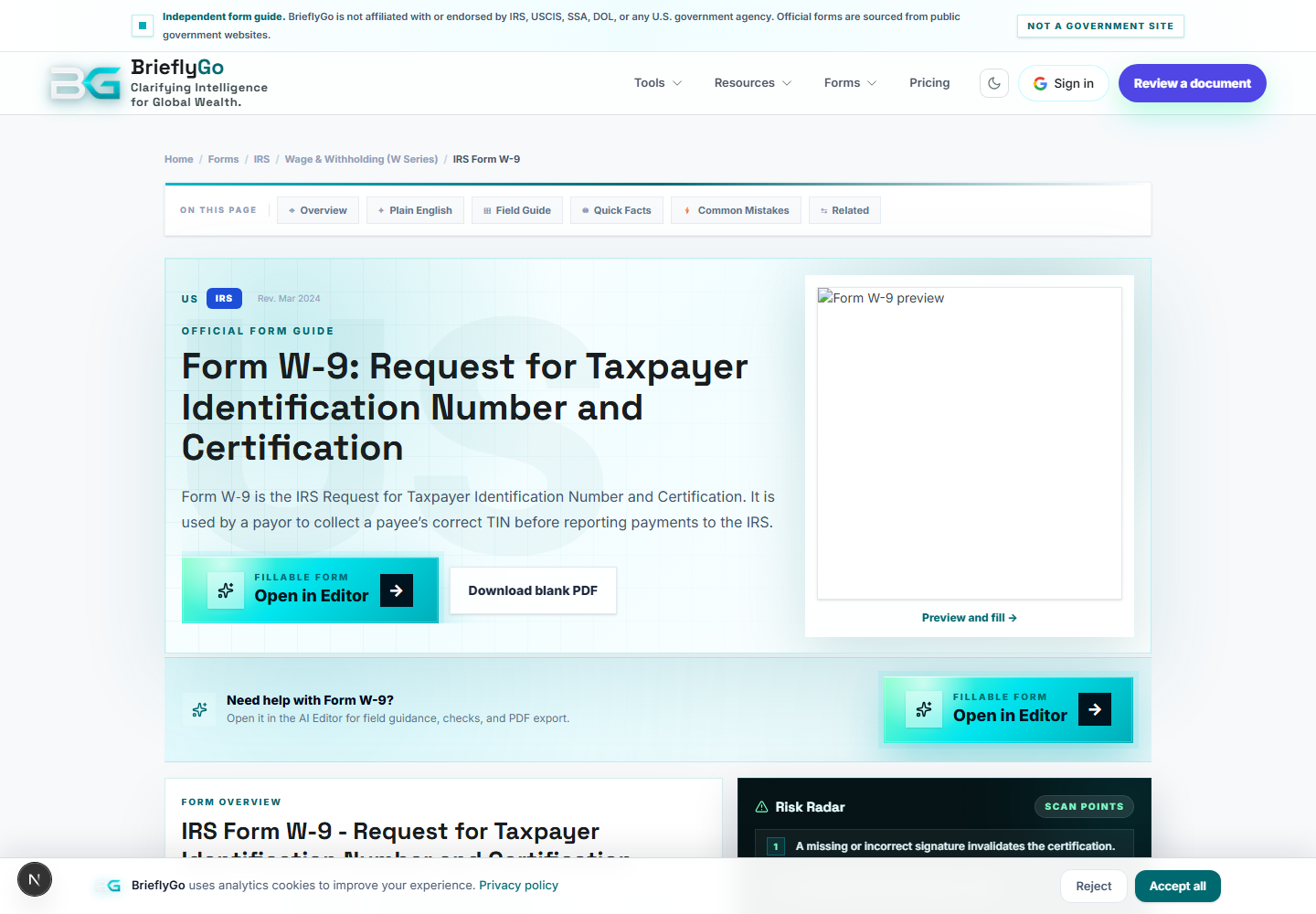
Form Guide -> Editor -> Save Copy
Pick an official form, open the real PDF in Soft Editor, fill or annotate it, then keep a copy by downloading it to disk or emailing it to yourself.
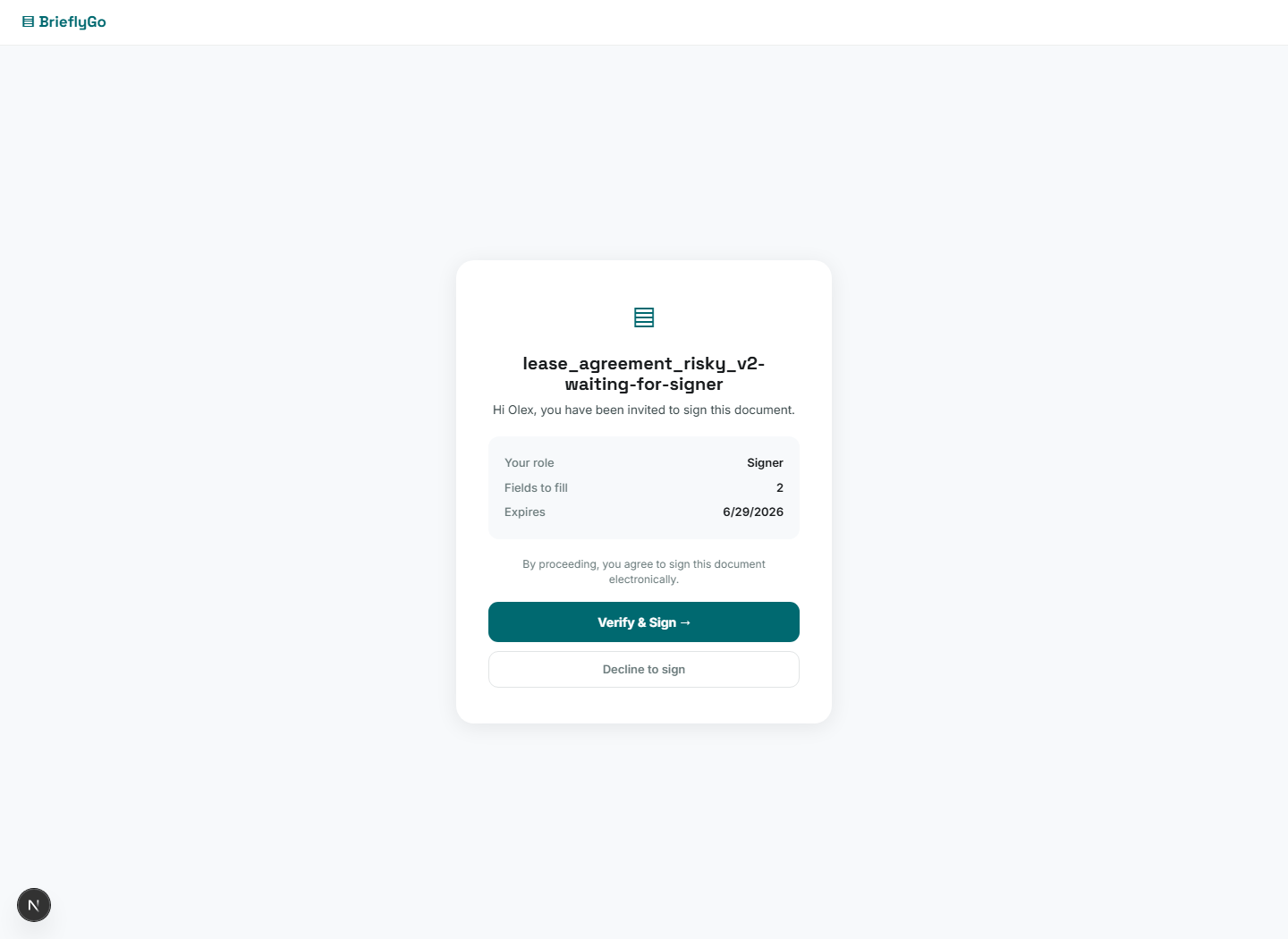
Signer Flow
A recipient opens a protected link, verifies access if needed, fills assigned fields, signs, and the sender sees progress.
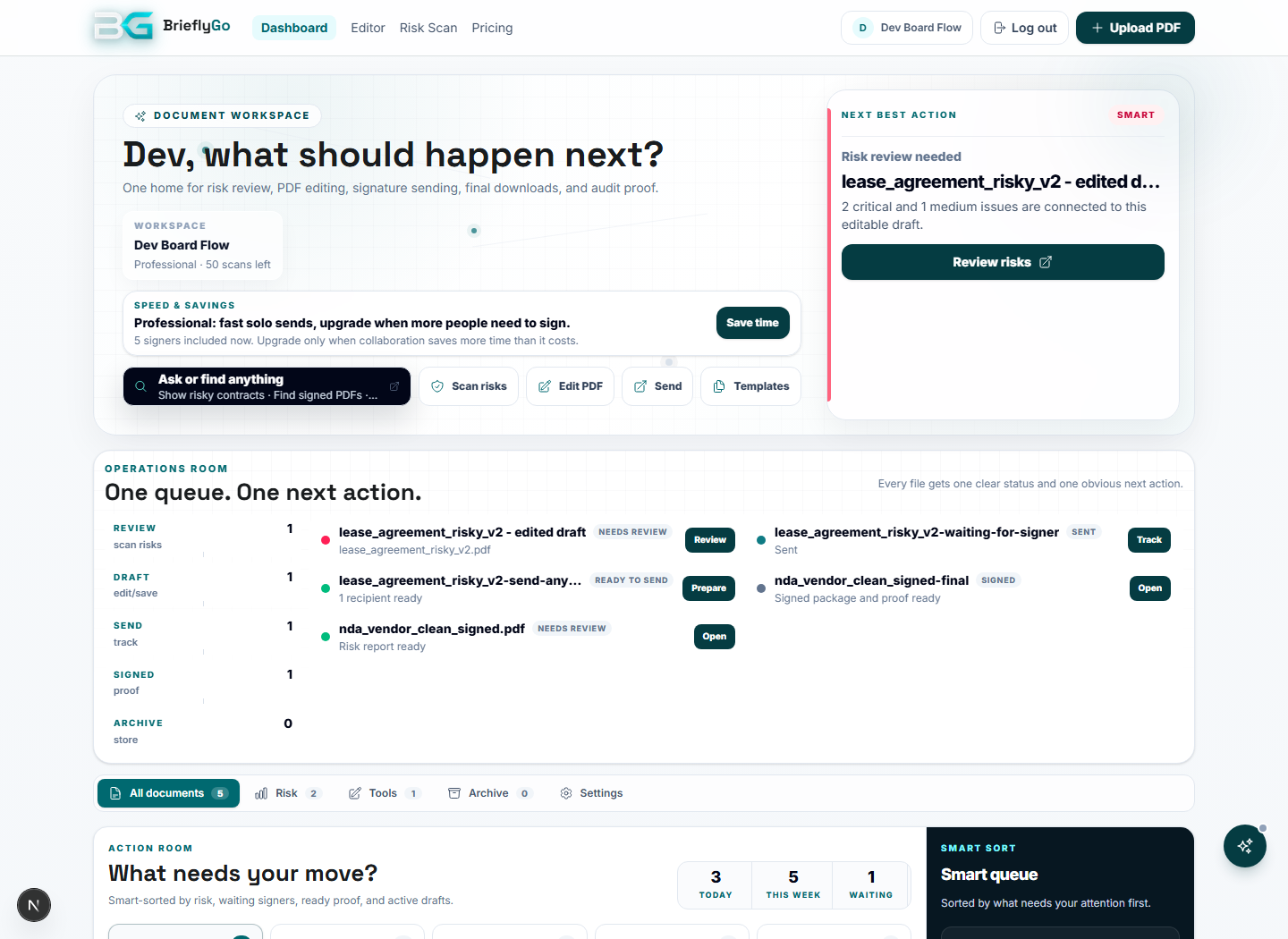
Dashboard Lifecycle
The dashboard answers one question: what should I do next with my documents?
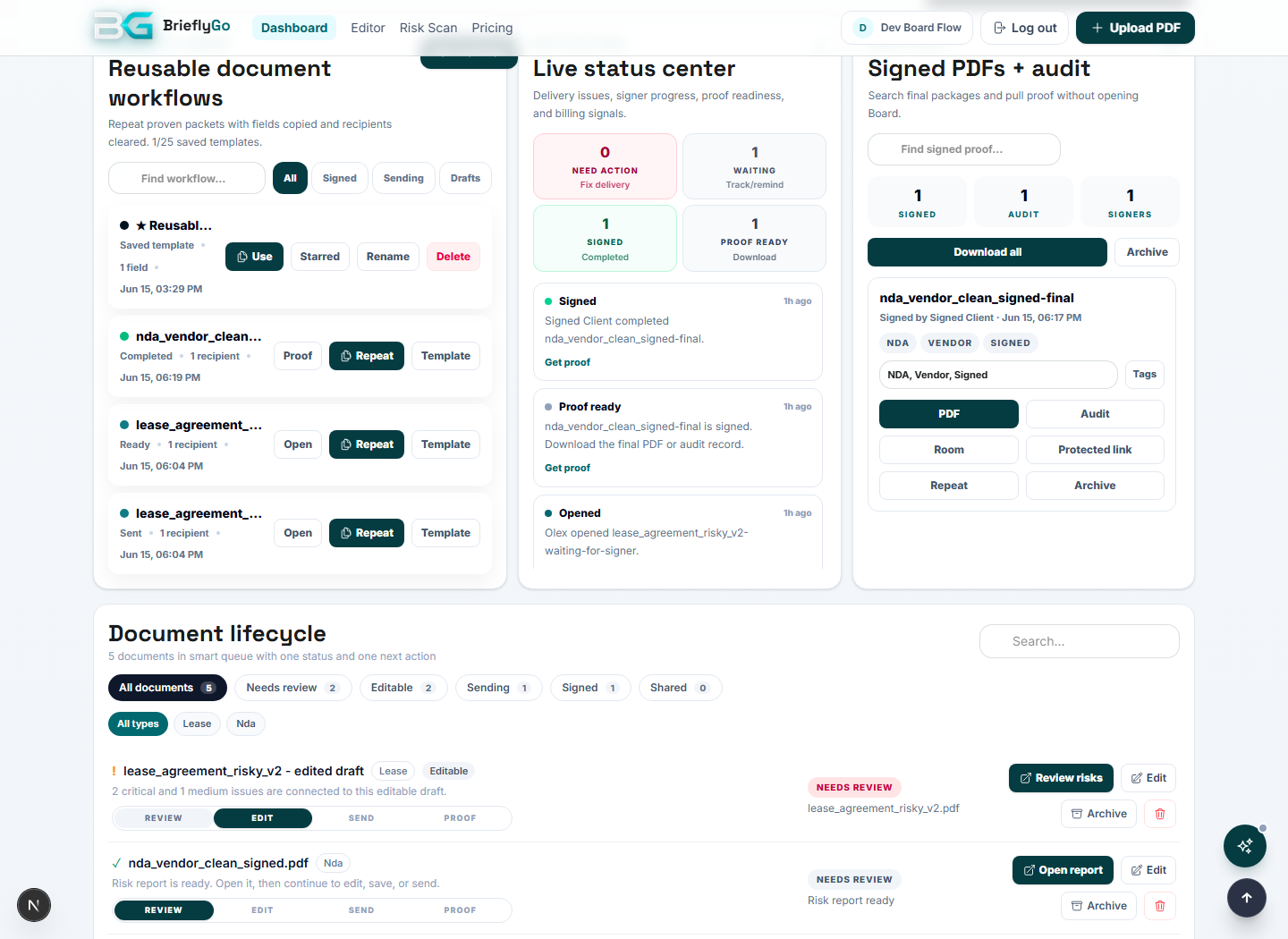
Proof Vault
After signing, BrieflyGo keeps the final PDF and the audit evidence together so the user can prove what happened.
Photo → OCR → Editor
Take a photo (or a series of photos) of a physical document, upload them, and BrieflyGo will read the text with OCR, correct errors with AI, detect fillable fields, and open the result in the Soft Editor — ready to edit, annotate, sign, and send.
Workbench Template → Editor
Choose a role-specific template (e.g. freelancer contract review or accountant client packet), and BrieflyGo opens the Soft Editor pre-configured for that exact workflow — the right steps, the right tools, and the right CTA already in place.